Skip to content

Case

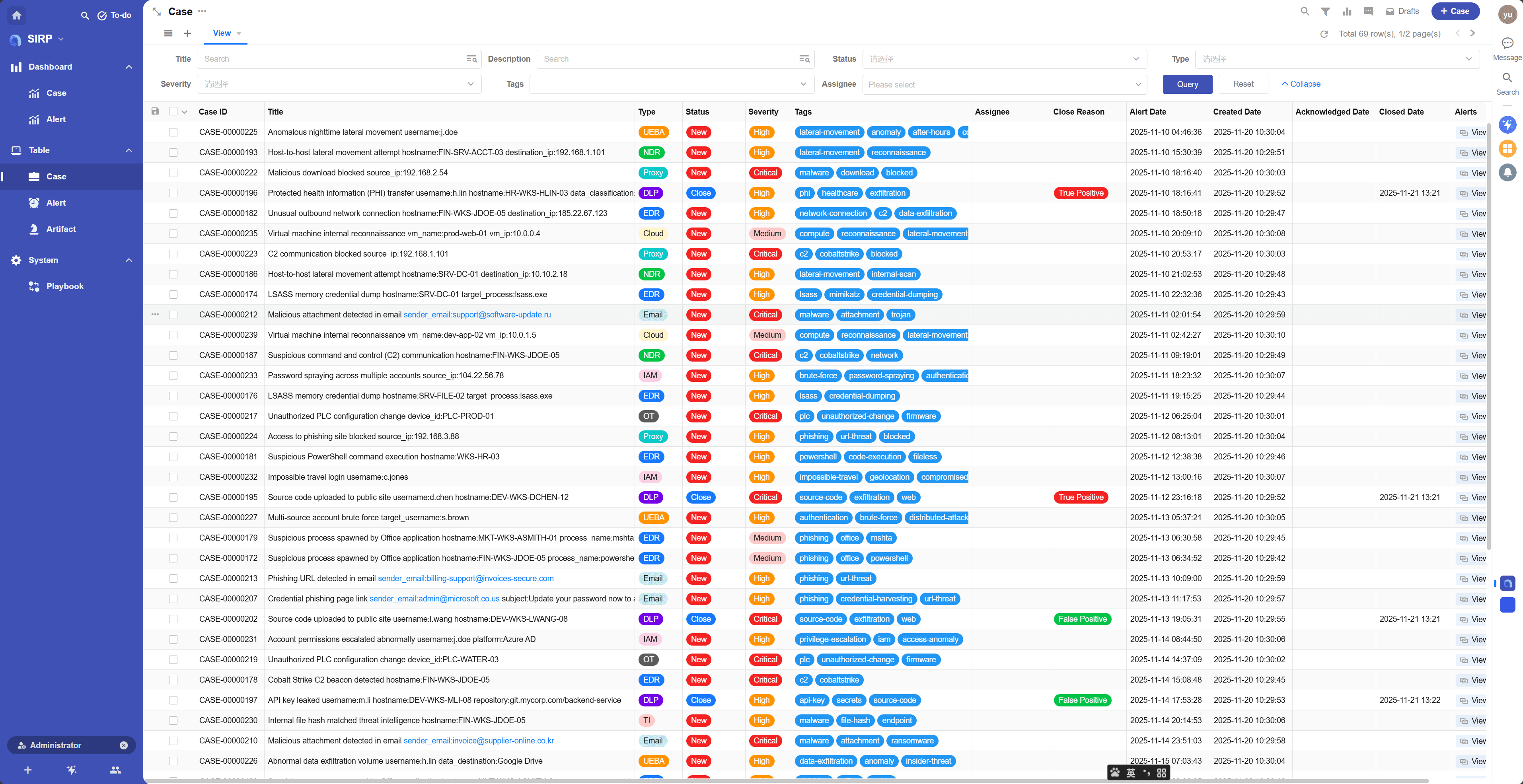
  • Provides incident responders with a centralized view for managing and tracking the handling process of security incidents.
  • Users can assign and update security tickets, ensuring that each incident is handled promptly and effectively.

View

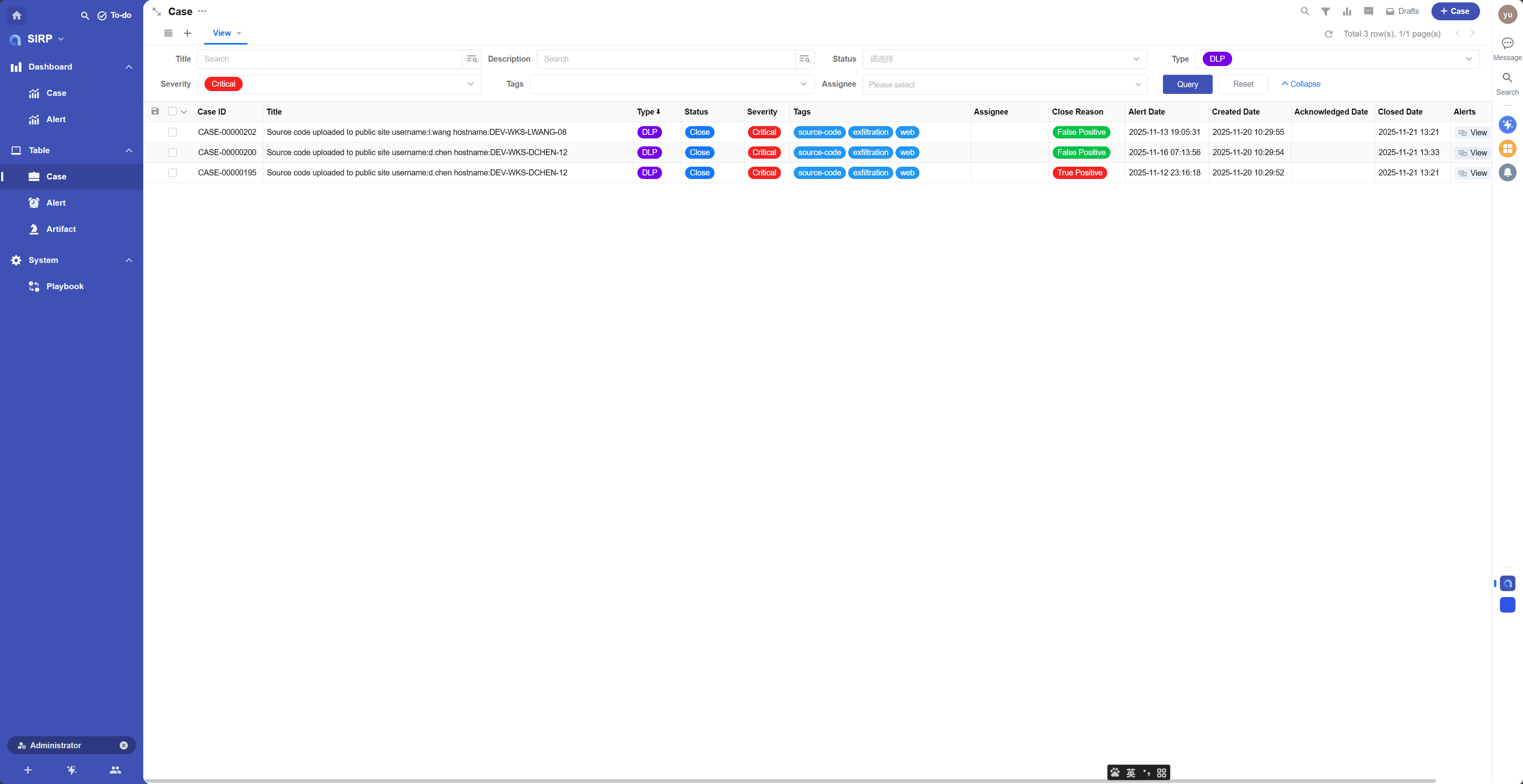
  • Supports various filtering and sorting functions.

img.png

img_1.png

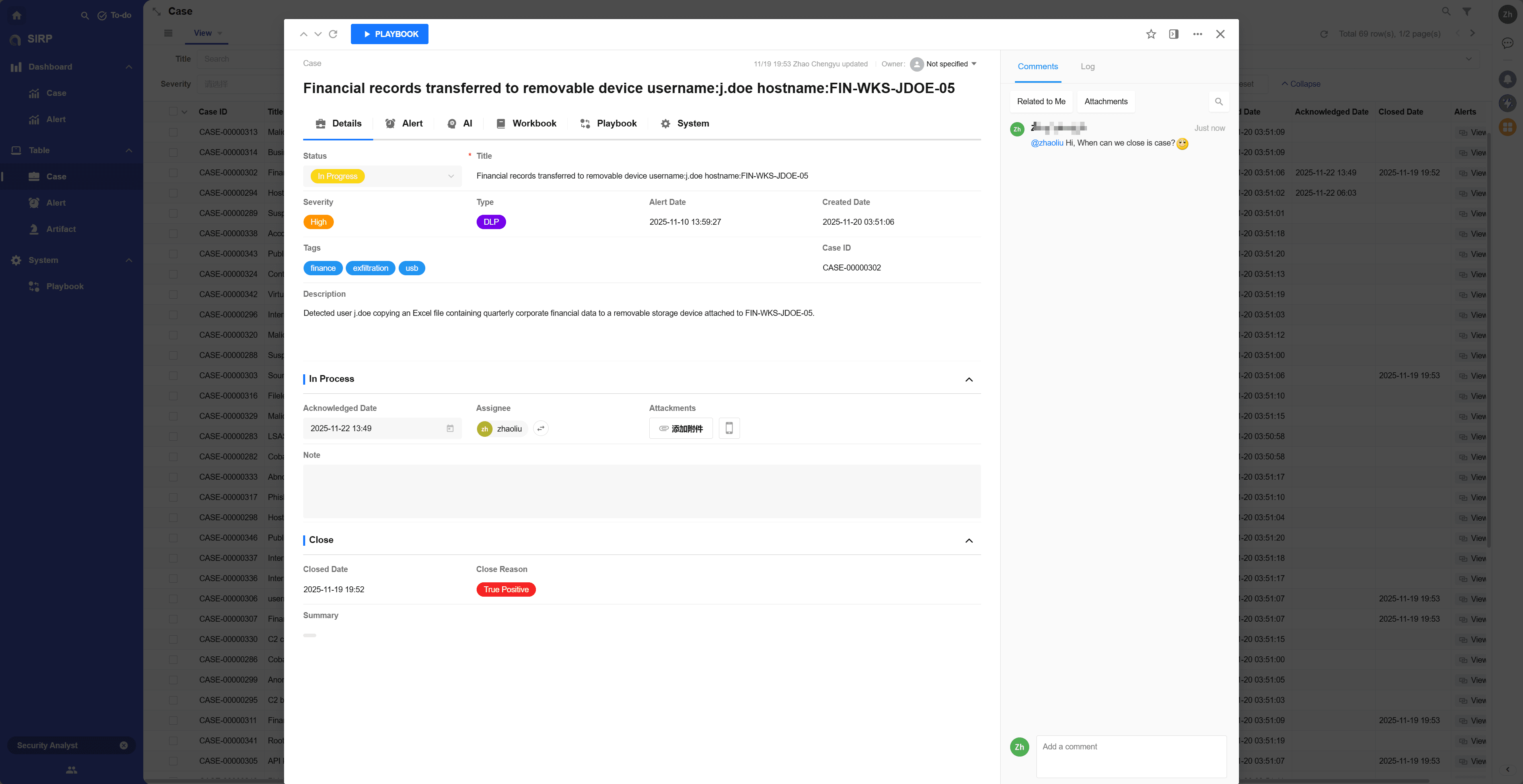
Detail

img_2.png

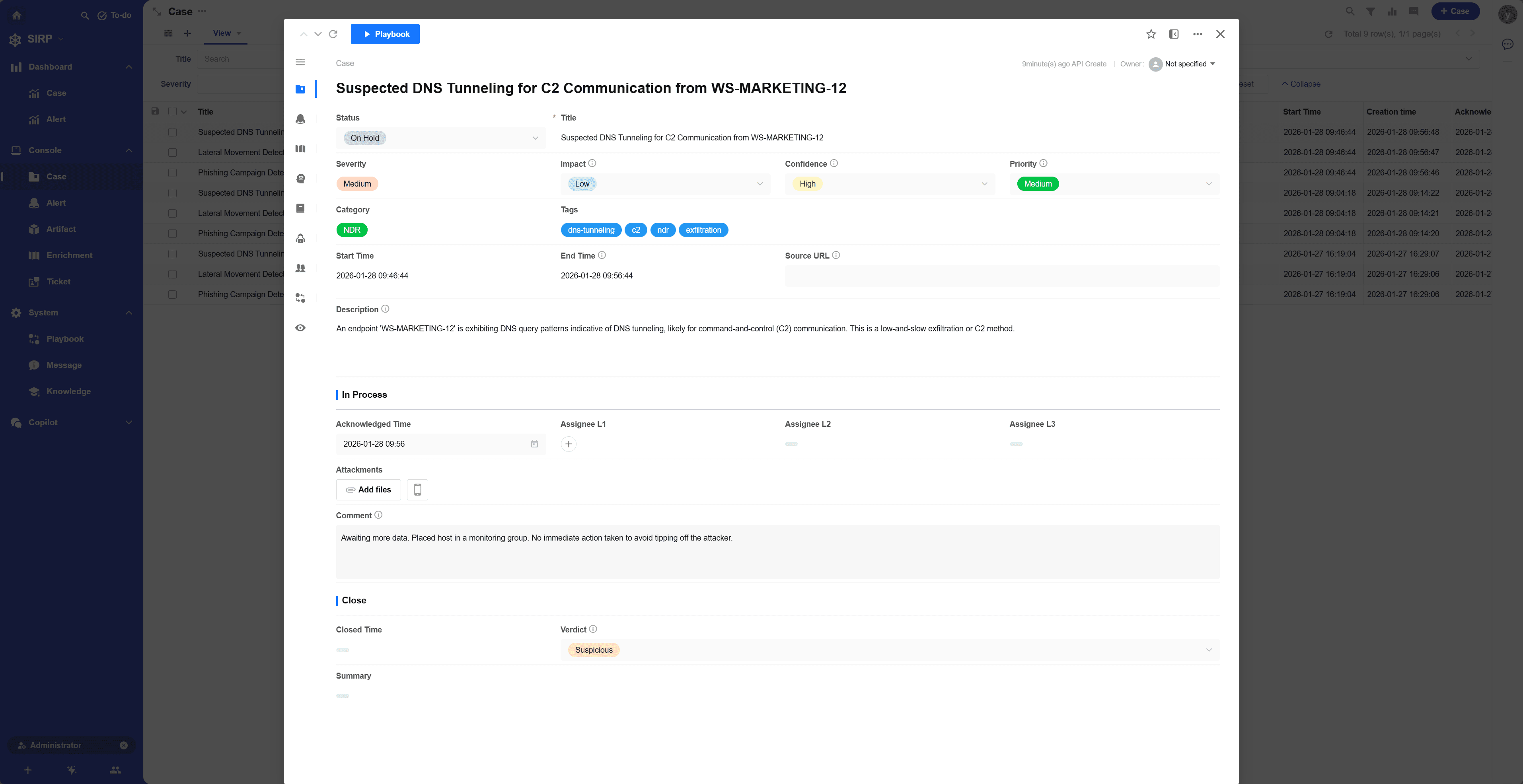
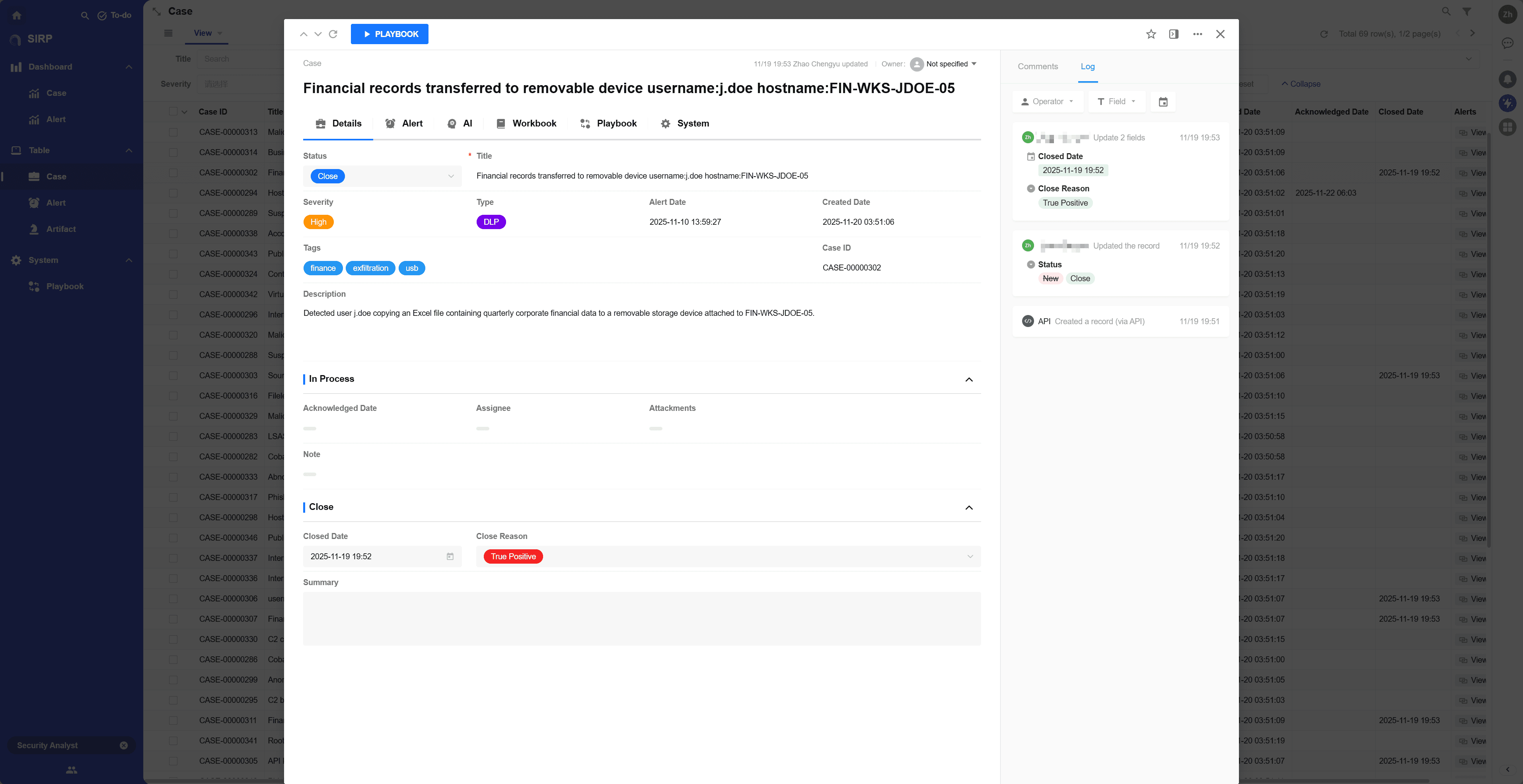
Case Operations Panel

  • Status

Ticket status, divided into New, In Progress, Closed three states. Initially New. When the analyst manually updates the status to In Progress, it means the ticket is being processed. At this time, Acknowledged Date, Assignee, Attachments, Note are editable. When the analyst manually updates the status to Closed, it means the ticket has been processed. At this time, Close Date, Close Reason, Summary are editable.

  • Title

Ticket title, briefly describing the ticket content.

  • Severity

Ticket severity level, divided into four levels: Low, Medium, High, Critical.

  • Type

Ticket type, categorized as NDR, EDR, DLP, etc.

  • Alert Date

The earliest time among the alerts associated with the Case. Can be used to calculate MTTD.

  • Created Date

Case creation time. Can be used to calculate MTTD.

  • Tags

Case tags, used for classifying and marking tickets. Can be used for searching and filtering.

  • Case ID

Automatically generated unique ticket number. Used only for readability display, not as a unique identifier.

  • Description

Detailed description of the Case, including incident background, scope of impact, and other information. Supports Markdown format.

  • Acknowledged Date

Time when the Case was acknowledged by the analyst. Can be used to calculate MTTA.

  • Assignee

Current handler. Can be used to assign and track ticket processing progress.

  • Attachments

Attachments related to the Case, such as log files, screenshots, etc. Supports various file formats. Analysts can upload relevant evidence here.

  • Note

Remarks during the Case processing. Analysts can record the investigation process, discovered clues, and other content. Supports Markdown format.

  • Close Date

Case closure time. Can be used to calculate MTTR.

  • Close Reason

Case closure reason. Analysts can select predefined closure reasons, such as True Positive, False Positive, Ignore, Duplicate.

  • Summary

Case processing summary. Analysts can record the final investigation results, response actions taken, and other content. Supports Markdown format.

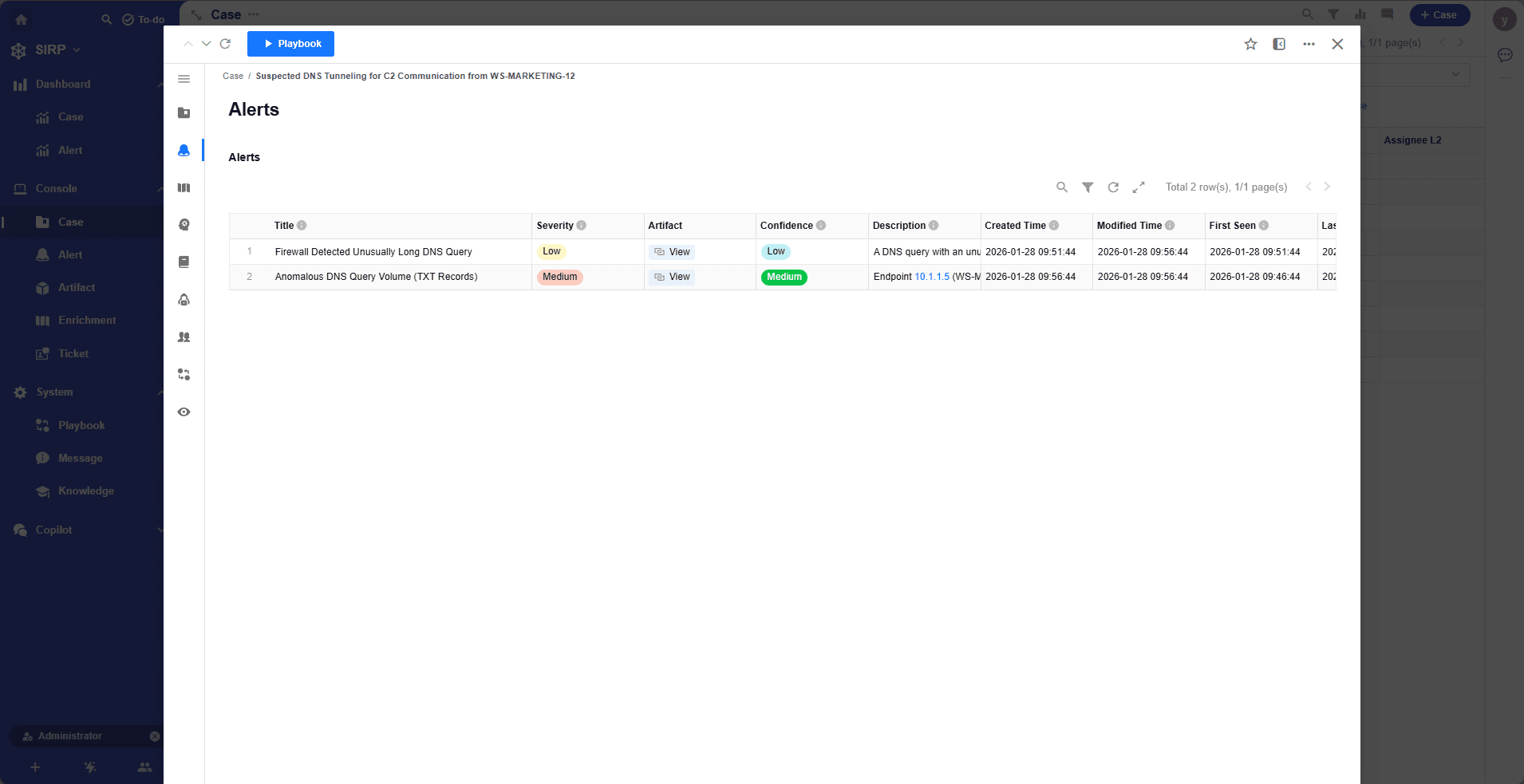
Alert

All alerts associated with the Case. Supports clicking on an Alert record to view alert details.

img_3.png

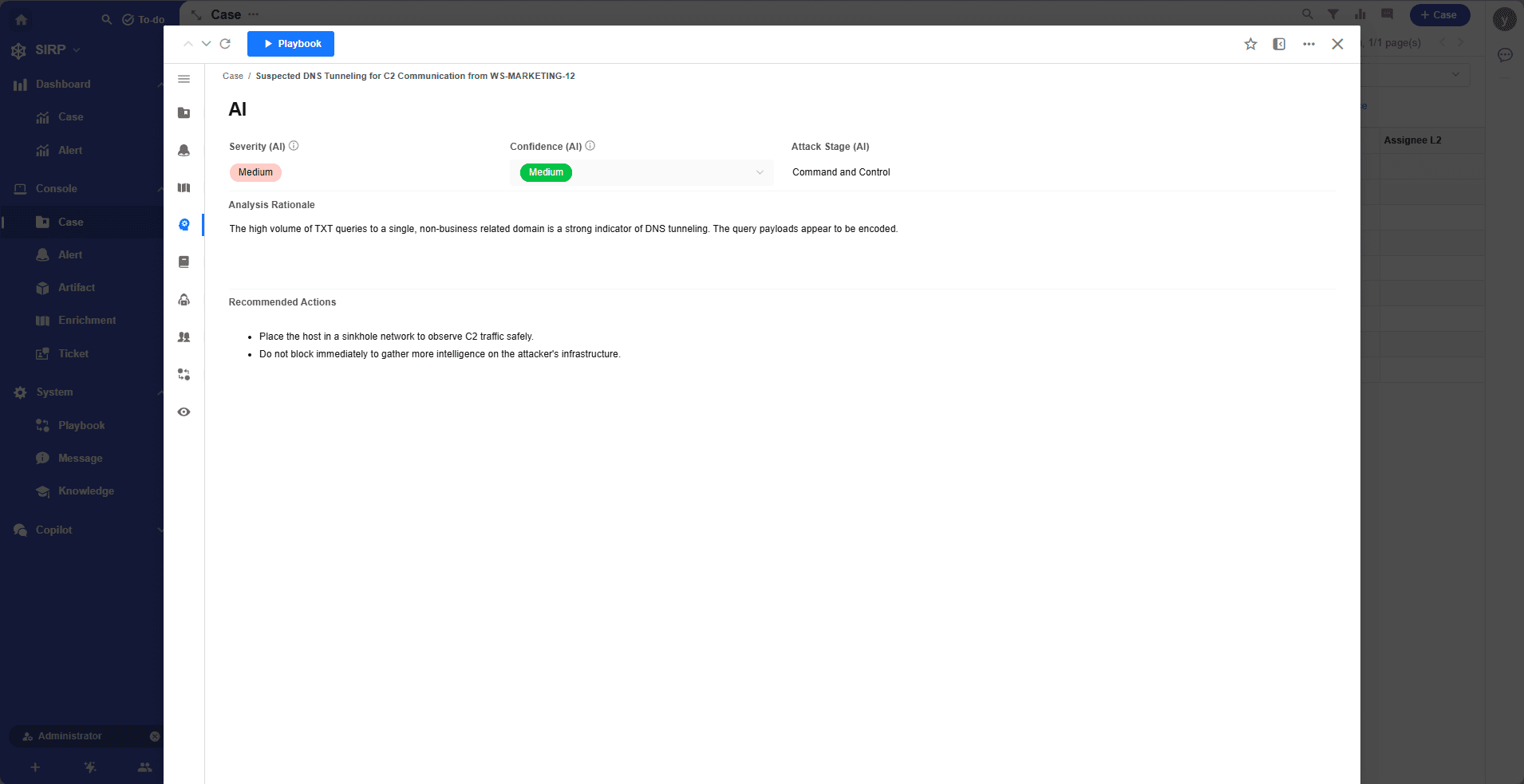
AI

img_4.png

Displays the analysis results from the AI Agent.

  • Confidence

AI's confidence score for the analysis result, Low, Medium, High three levels.

  • Attack Stage

Attack stages in the MITRE ATT&CK framework, such as Initial Access, Execution, Persistence, etc.

  • Analysis Rationale

Analysis basis output by the AI Agent.

  • Recommended Actions

Recommended response actions by the AI Agent.

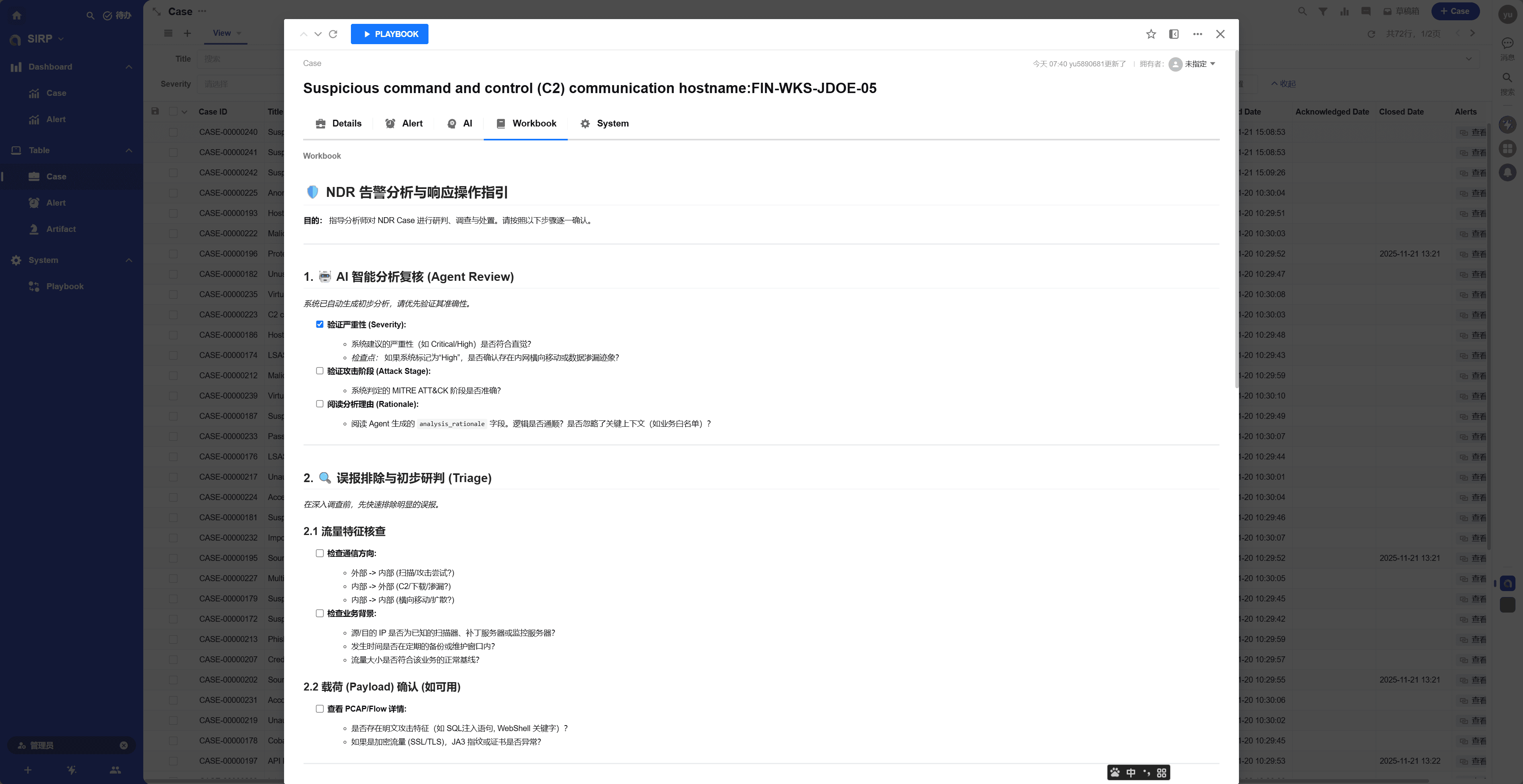
Workbook

Case handling manual, guiding analysts to complete investigation and response work. Supports Markdown format.

Workbook can use options like [] to facilitate analysts in completing tasks step by step.

img_5.png

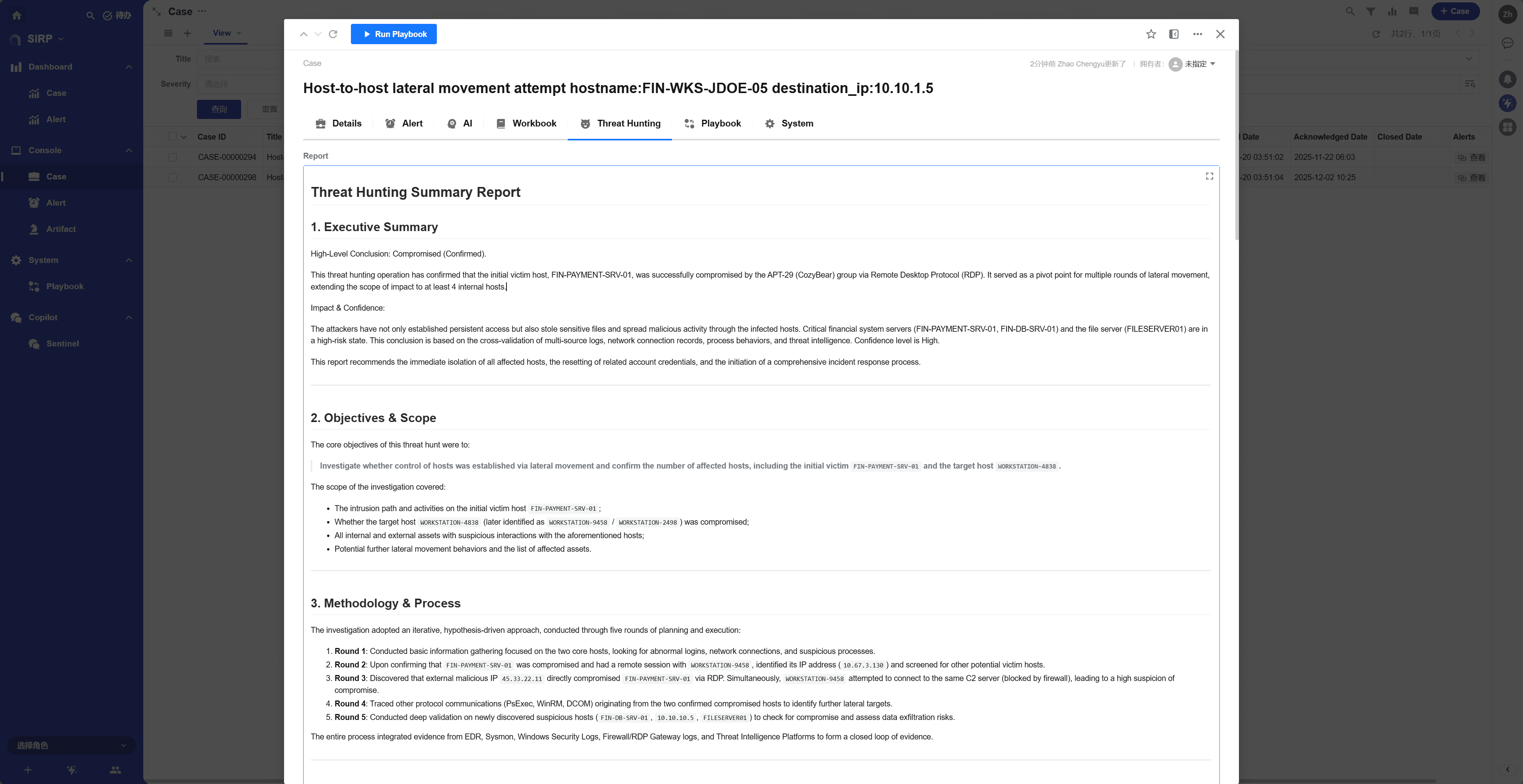
Threat Hunting

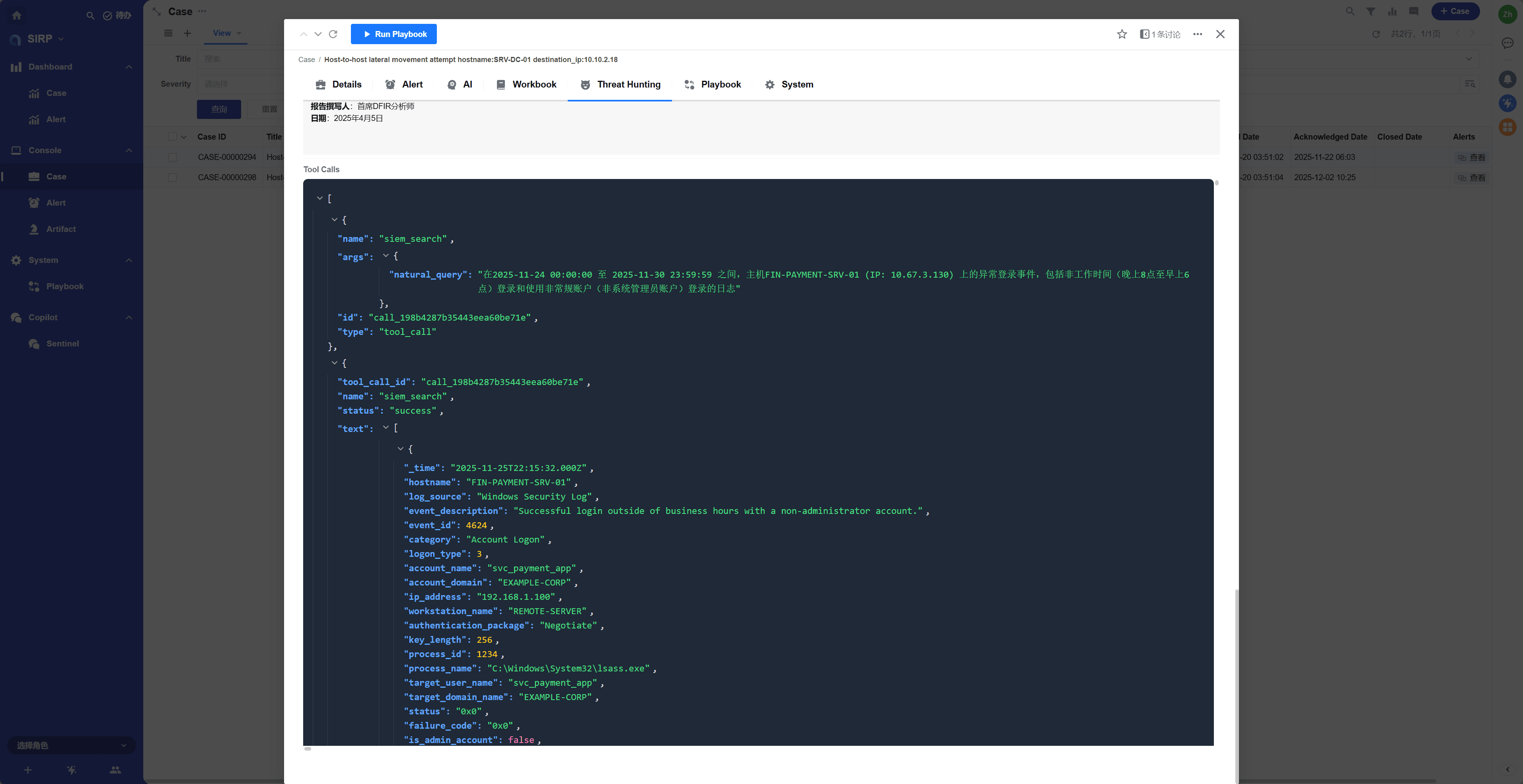
Threat hunting Agent report associated with the Case.

img_16.png

Threat hunting Agent tool invocation records. img_17.png

Playbook

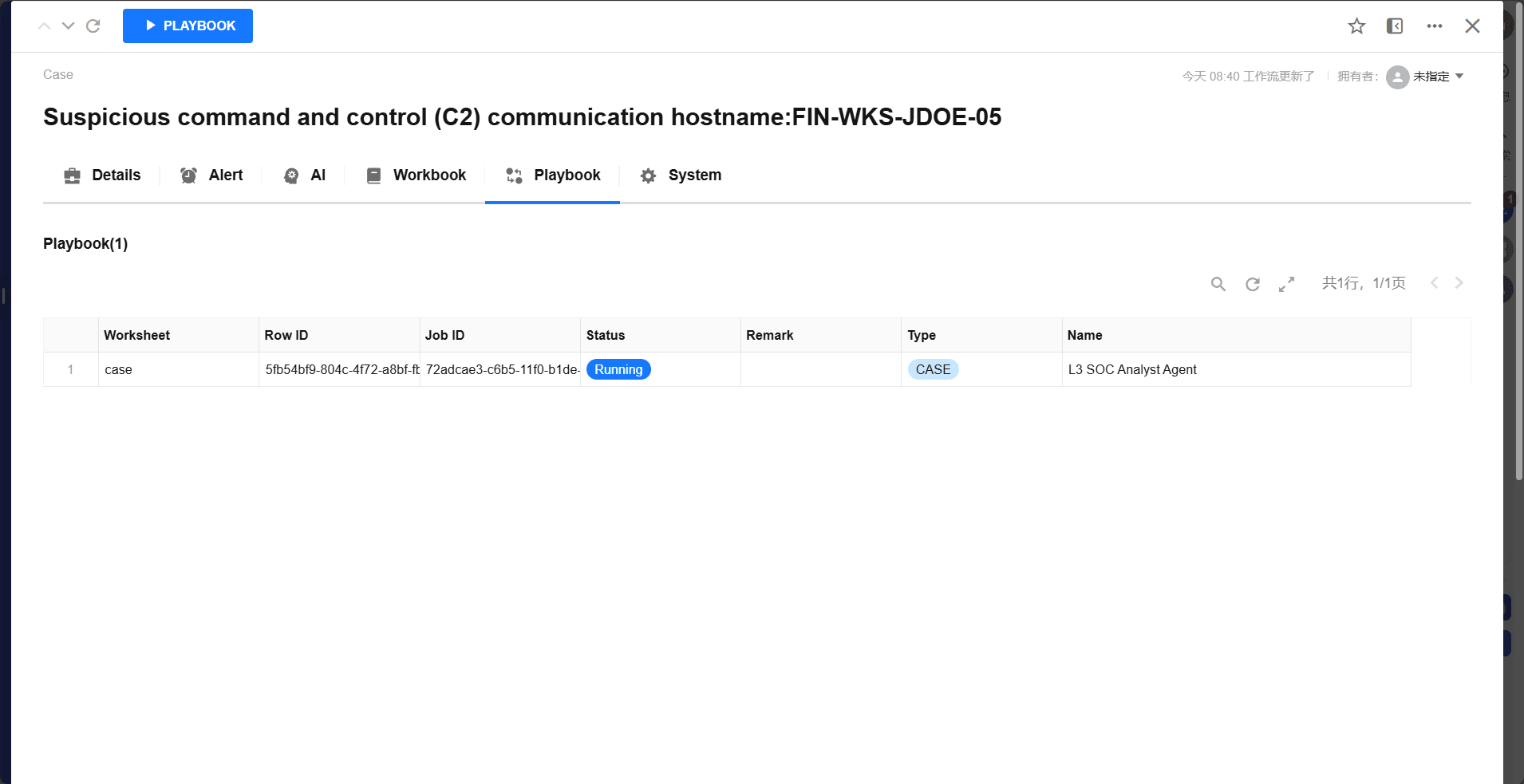
Automated playbook records associated with the Case.

img_7.png

System

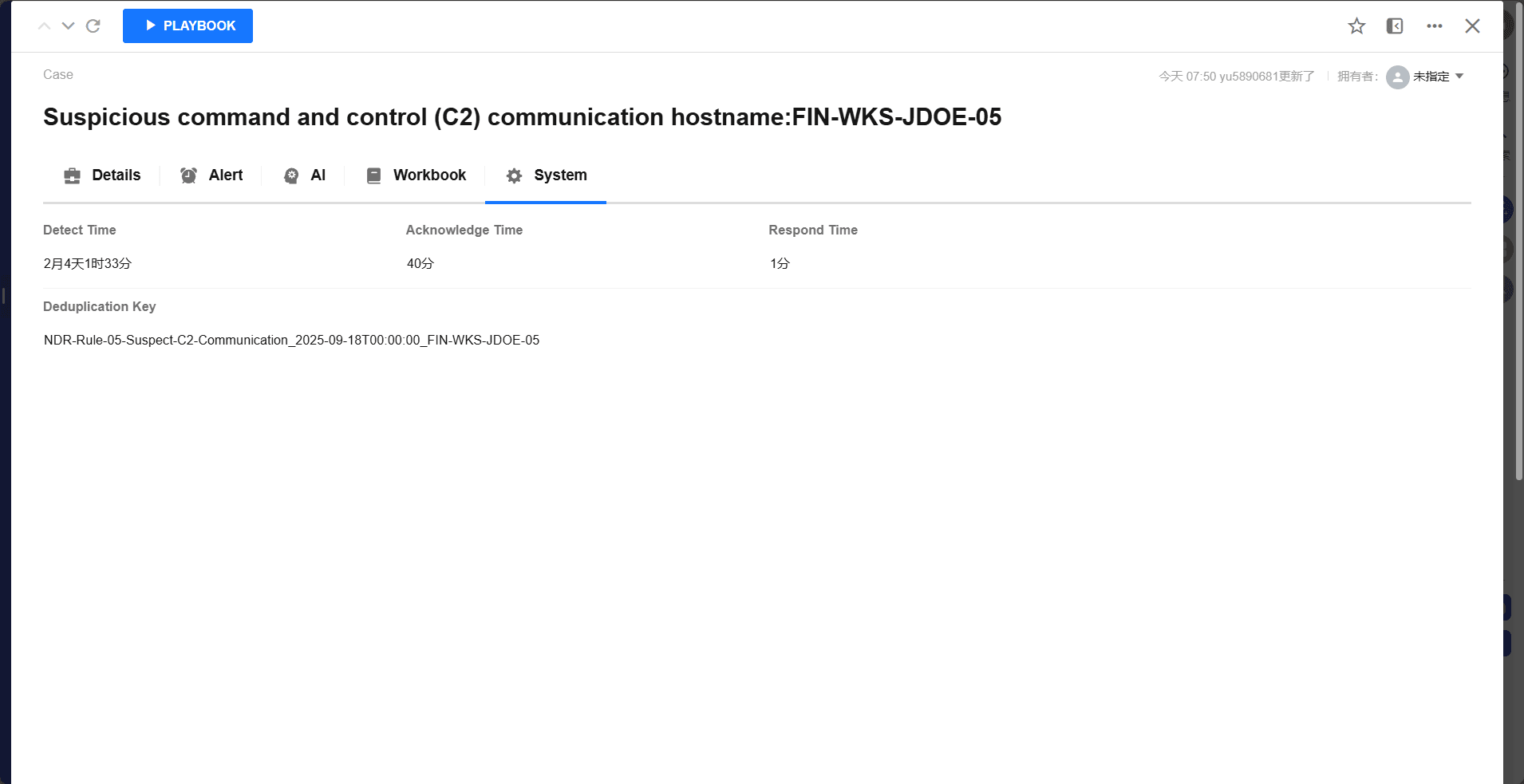
Internal system fields, for system use only.

img_6.png

  • Detect Time

Time taken to detect.

  • Acknowledge Time

Time taken to acknowledge.

  • Respond Time

Time taken to respond.

  • Deduplication Key

Alert aggregation keyword, used to aggregate similar alerts into the same Case.

Operation Log

You can view the change history of the Case for auditing and tracking.

img_9.png

War Room

You can view and participate in discussions related to the Case, collaborate as a team, and also use it as a war room for the Case.

img_8.png

Execute Playbook

For Playbook development, refer to Playbook Development Guide.

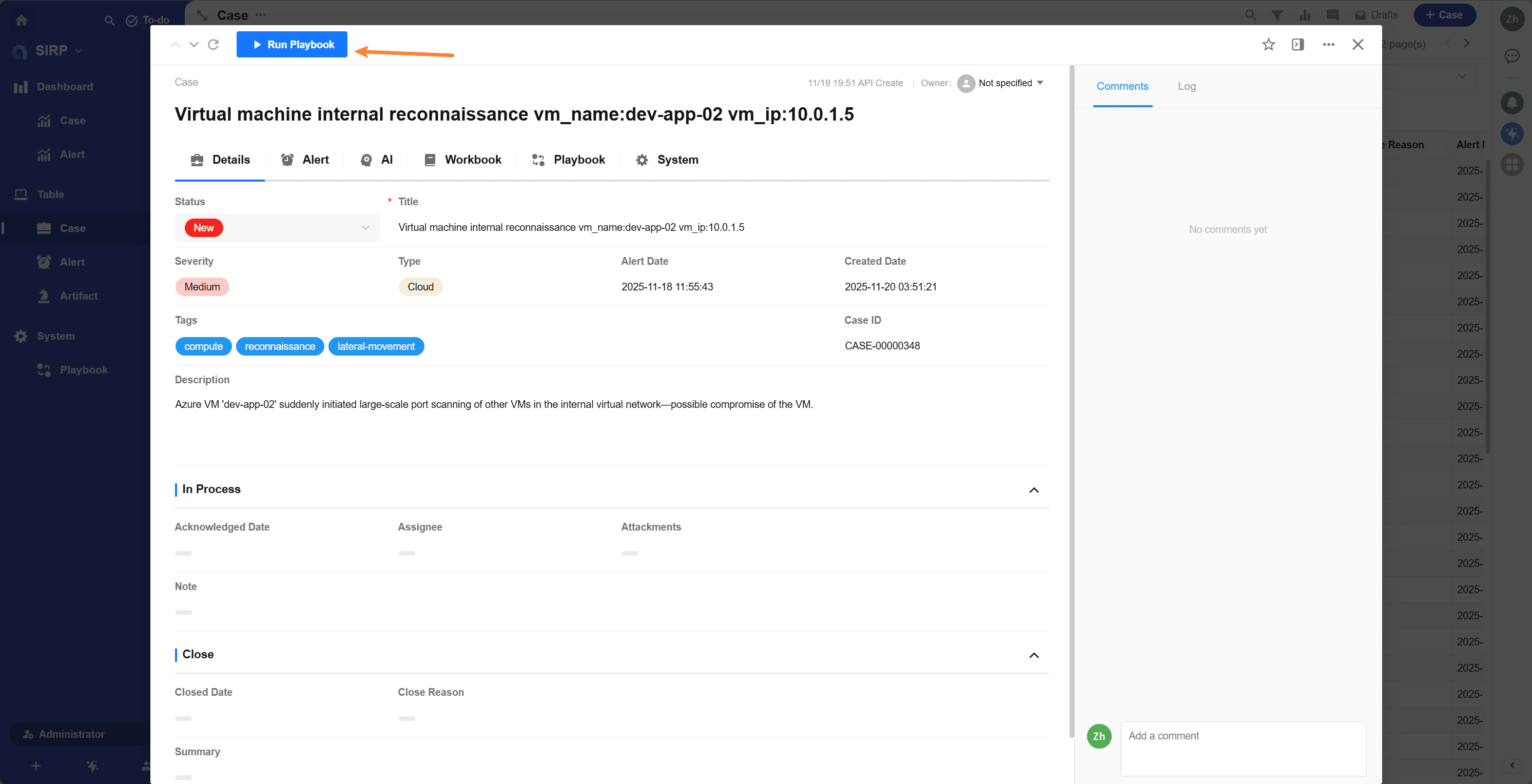
  • Open the detail page and click the Run Playbook button in the top left corner.

img_11.png

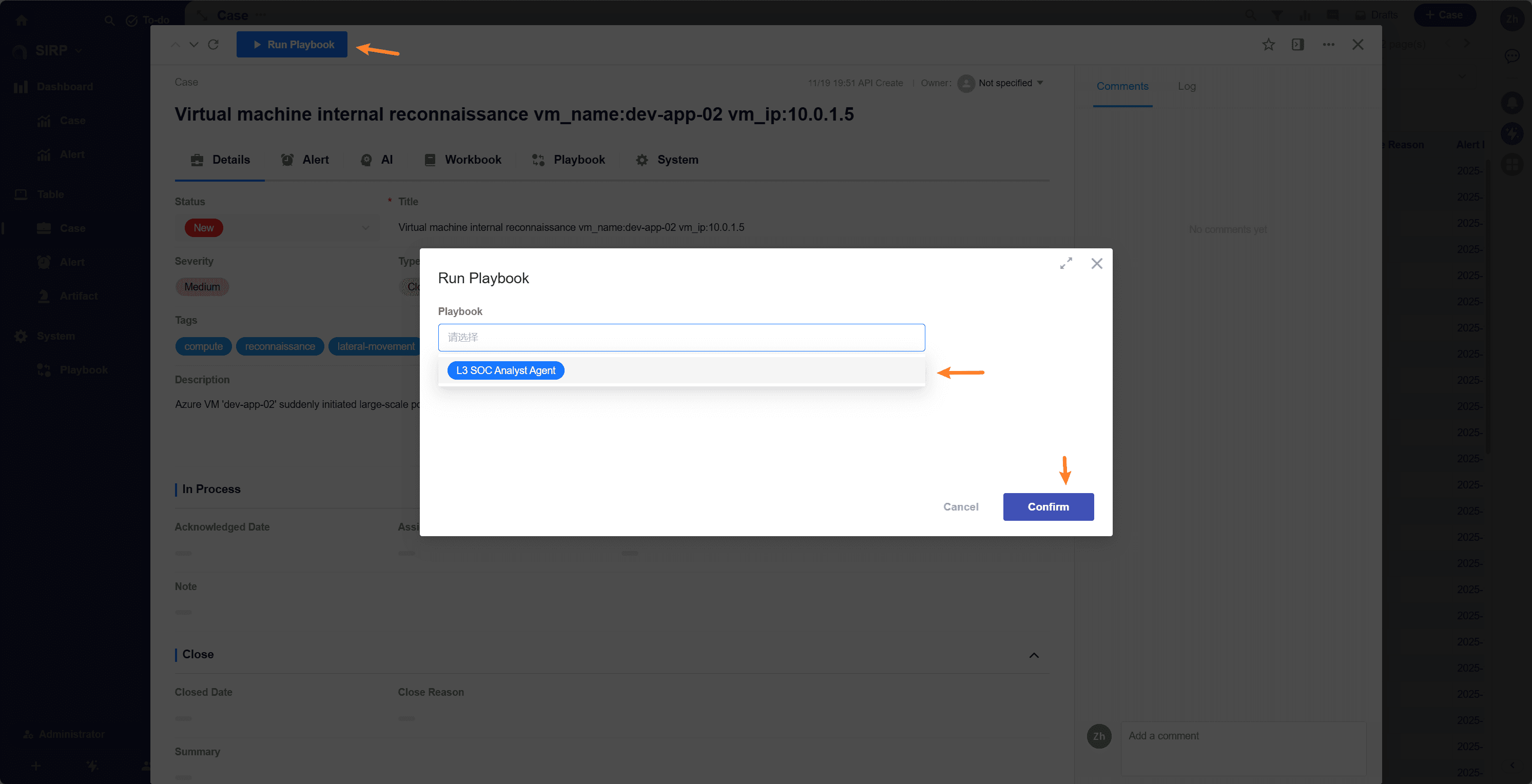
  • Select the playbook to execute and click the Confirm button.

img_10.png

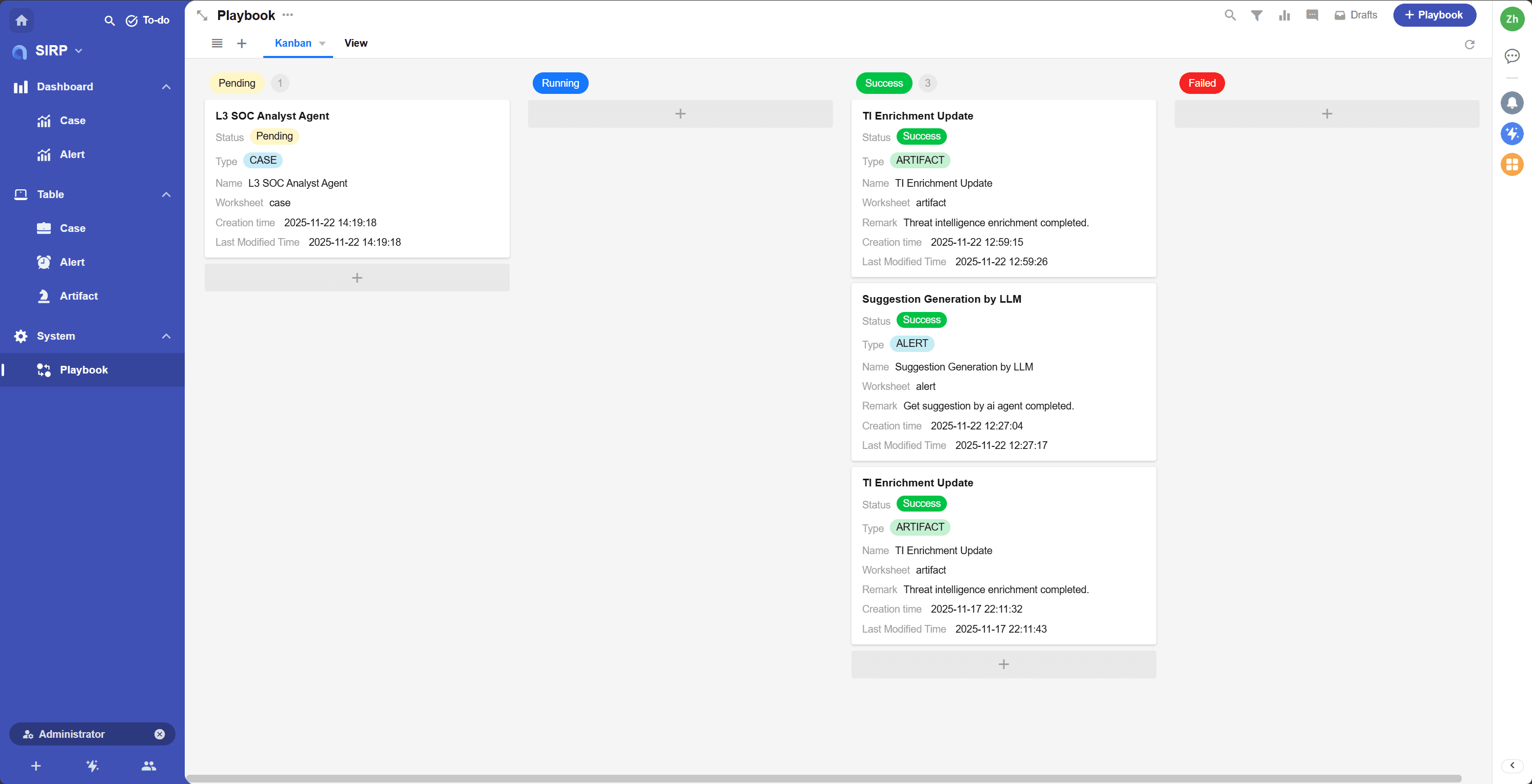
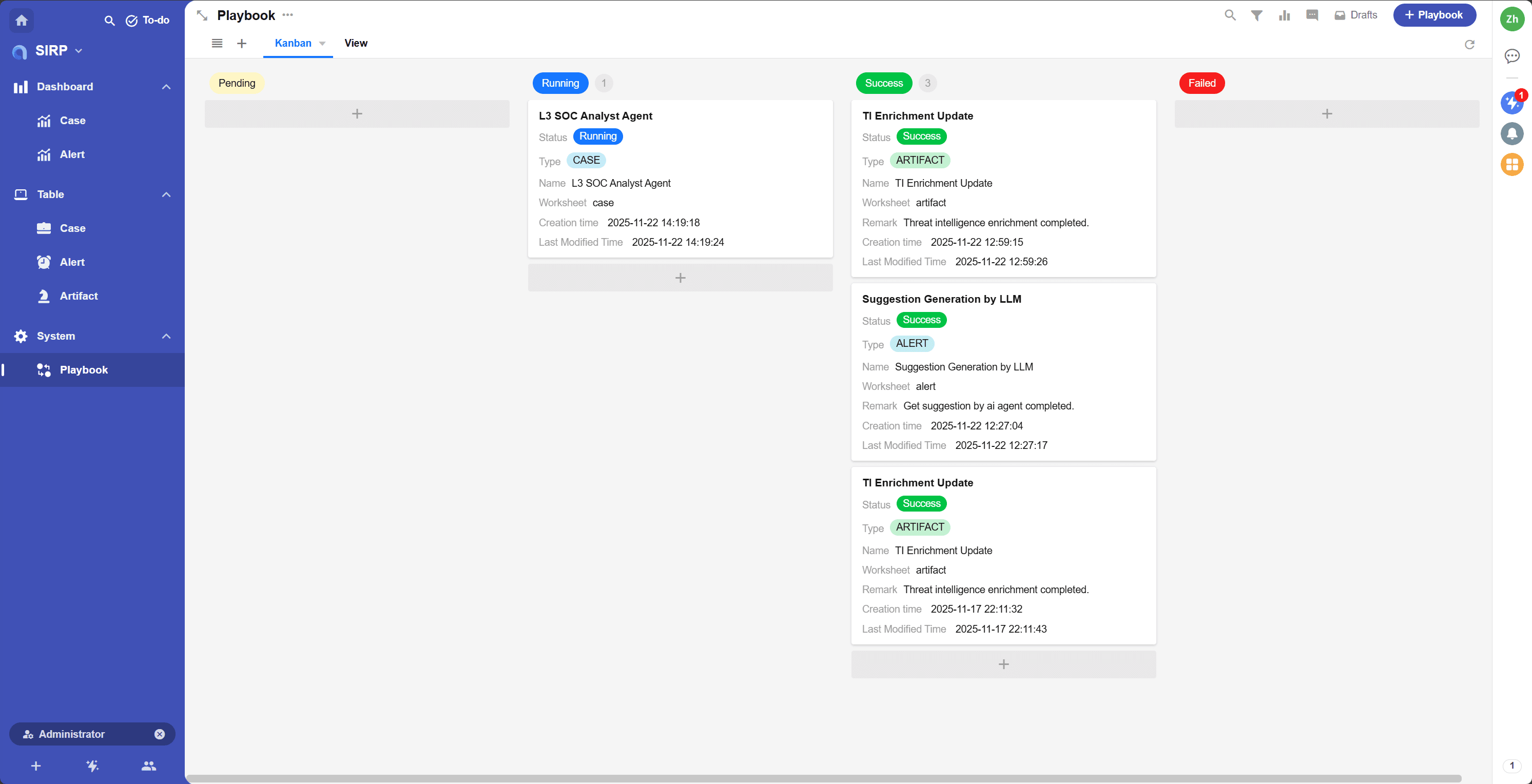
  • The task's initial status is Pending, awaiting scheduling for execution.

img_12.png

  • While the task is executing, its status is Running.

img_13.png

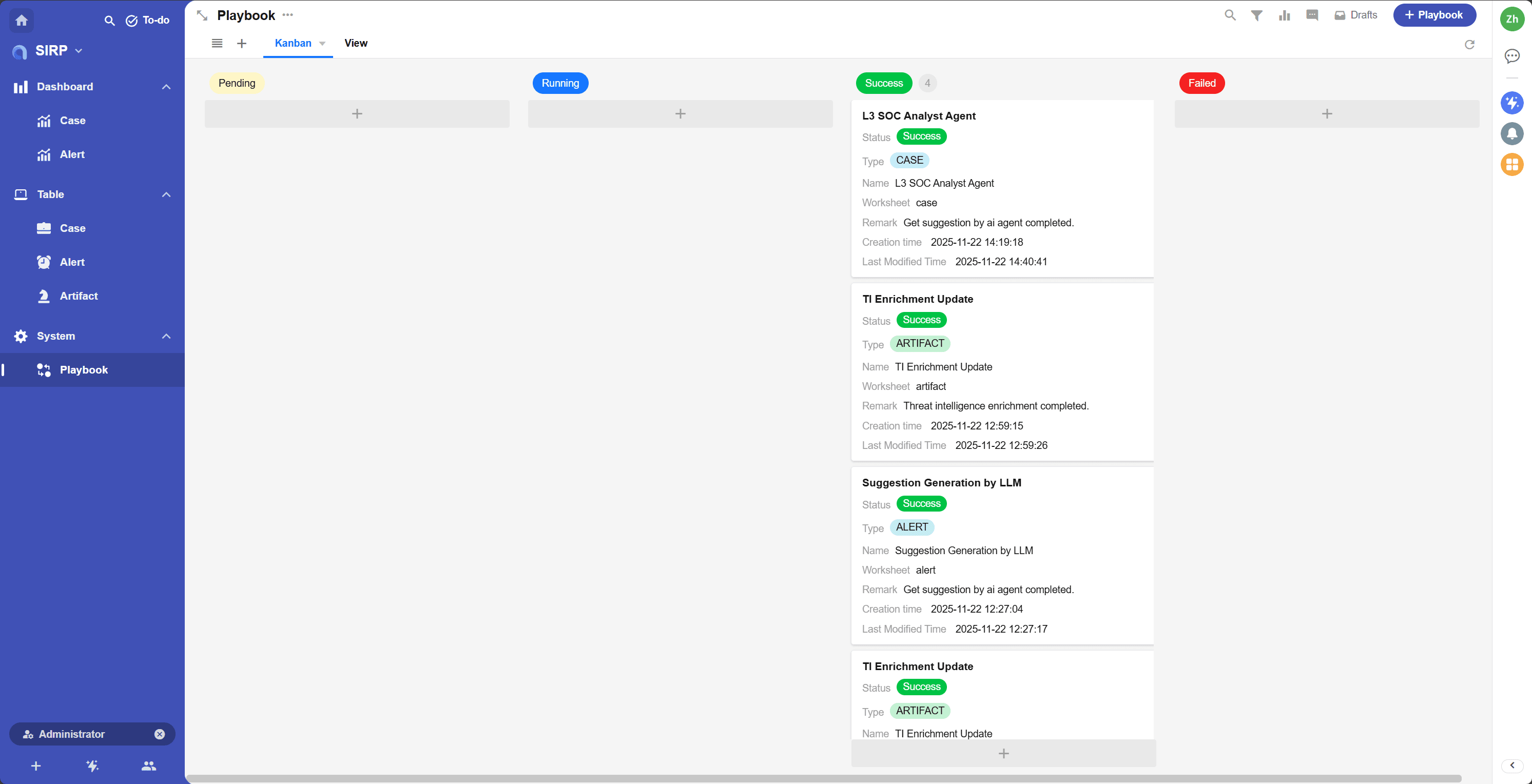
  • After the task completes, its status is Success or Failed. Click the task record to view execution details.
img_14.png